1. INTRODUCTION
Welcome to the Kii SEVEN experience. The Kii SEVEN is our most compact yet groundbreaking speaker system to date. It is suitable for lifestyle & home listening but equally tailored for precise music recording, production, and mixing.
The featureset of the speaker system will be expanded over time by automatic firmware updates free of charge. For the current status of the firmware development please refer to chapter 4.
The content of this support center will constantly be updated as well over time.
2. PACKAGE CONTENTS
- 1x Kii SEVEN active loudspeaker
- 1x mains cable
- 1x CAT6 cable
- (OPTIONAL) Kii Control package
- 1x Kii Control unit
- 1x CAT6 cable
- 1x USB cable
3. SAFETY INSTRUCTIONS
- Dangerous voltage is inside this apparatus. Opening is only allowed by qualified service personnel.
- Do not defeat the safety purpose of the safety earth connection. Use the provided three-prong power cord to insure the product is connected to safety earth. If the provided mains cord does not fit your outlet, consult an electrician for replacement of the obsolete outlet.
- Protect the power cord from being walked on or pinched, particularly at plugs, convenience receptacles, and the point where they exit from the apparatus.
- Unplug this apparatus during lightning storms or when unused for long periods of time.
- Do not use this apparatus near water. Do not expose the apparatus to dripping or splashing. Do not place objects filled with liquids (flower vases, drink cans, coffee cups, etc) on the apparatus. Do not use this apparatus out of doors.
- Do not install near any heat sources such as radiators, heat registers, stoves, or other apparatus that produce heat. Avoid exposure to direct sunlight.
- Use only with a speakerstand or table designed for use with audio or music equipment. In any installation, make sure that injury or damage will not result from cables pulling on the apparatus and its mounting.
- Refer all servicing to qualified service personnel. Servicing is required when the apparatus has been damaged in any way, such as when the power-supply cord or plug is damaged, liquid has been spilled or objects have fallen into the apparatus, the apparatus has been exposed to rain or moisture, does not operate normally, or has been dropped.
- To reduce the risk of fire or electric shock, do not expose this apparatus to rain or moisture.
4. SPEAKER CONNECTIVITY
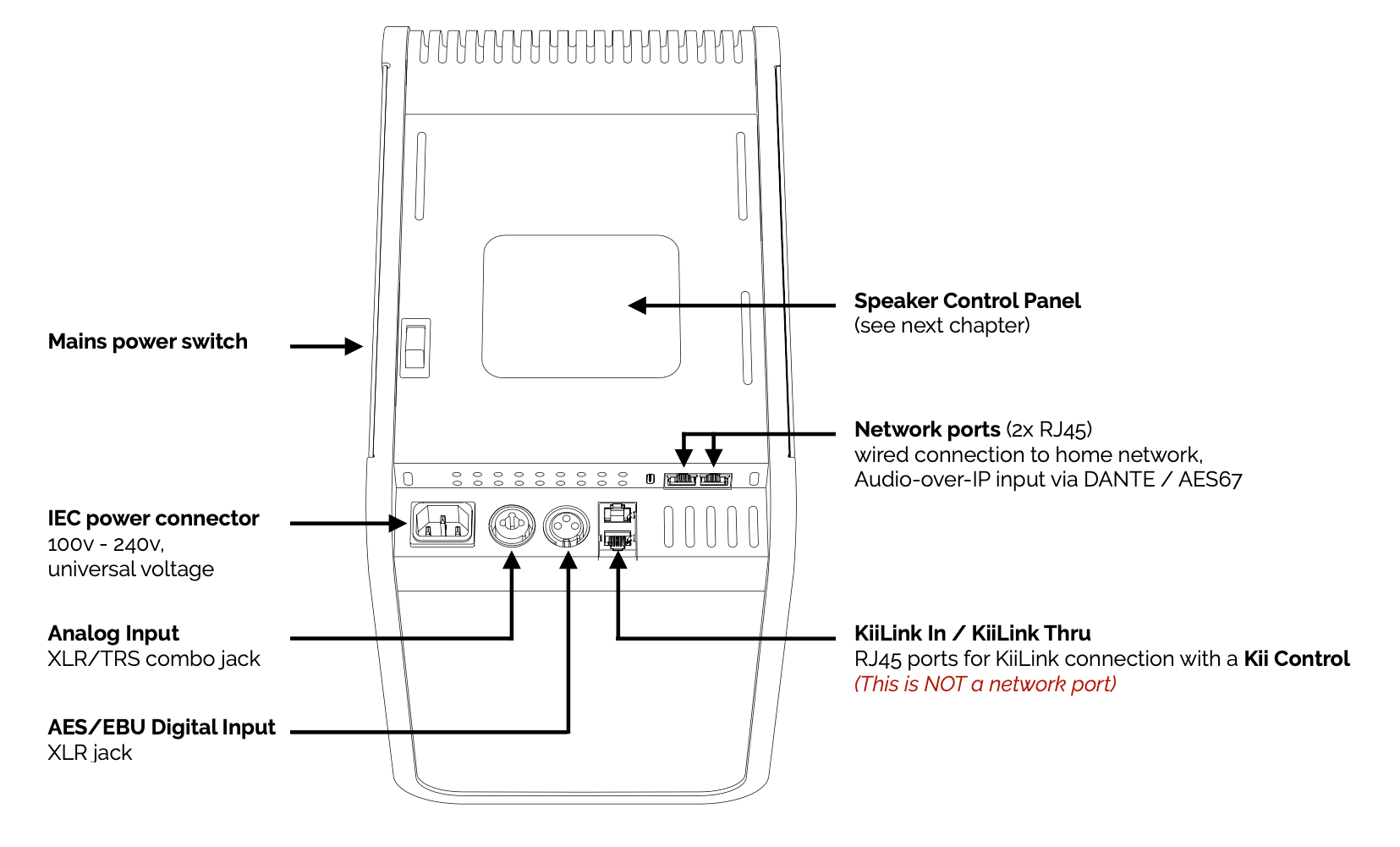
ANALOG INPUT:
XLR/TRS Combo jack for analog line signals (symmetrical) via either XLR or TRS jacks
(Sensitivity can be switched between -10dBv and +4dBu operation levels)
AES/EBU Digital Input:
XLR jack for digital AES/EBU (or AES3) signals
KiiLink (Connection for the Kii Control)
The optional Kii Control adds USB, S/PDIF (coax), & Toslink (optical) connectivity to the speakers.
See chapter 8.
DANTE / AES67
Audio-over-IP connectivity is provided via 2 network ports.
STREAMING / WIFI
Built-in WIFI offers streaming via Spotiy Connect, Tidal Connect or Qobuz Connect.
(Provisioning and speaker settings available via the Kii Home App for iOS or Android)
5. SPEAKER CONTROL PANEL
(FOR STANDALONE USE ONLY)
IMPORTANT:
Once the Kii SEVEN is connected to the Kii Control or Kii Home app, the backpanel is disabled in order to prevent confusion regarding where settings are made. All the settings that are on the back of the speaker are then accessed via the Kii Home app or Kii Control.
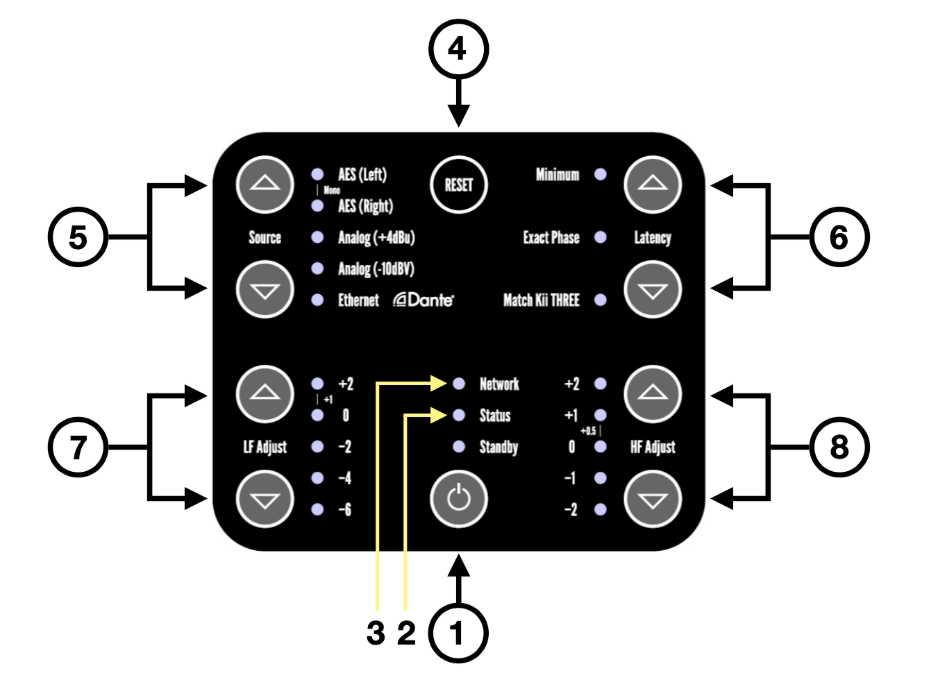
1. Standby
The Standby button activates and deactivates the speakers standby mode.
(The speaker also has a MAINS POWER Switch on the left side of the back panel.)
2. Status LED - (indicator, no button)
3. Network LED - indicates connection to an Audio-over-IP Network such as DANTE or AES67.
4. RESET
The RESET button enables you to do a hardware reset of the speakers DSP.
To perform a reset press and hold the RESET button for ca. 15 seconds, wait for all LEDs lighting up in series and finally blink all together to signal a successful reset.
5. Source
Here you can switch through the different available source inputs on the Kii SEVEN with the up and down buttons.
The available input options are:
- AES (LEFT) - This selects playback of the left channel of a connected AES cable to AES XLR Input on the speaker.
- AES (Mono) - This selects playback of the summed mono signal of a connected AES cable to AES XLR Input on the speaker.
- AES (RIGHT) - This selects playback of the right channel of a connected AES cable to AES XLR Input on the speaker.
- Analog (+4dBu) - This selects playback of the Analog XLR Input on the speaker (calibrated for professional input levels).
- Analog (-10dBv) - This selects playback of the Analog XLR Input on the speaker (calibrated for consumer input levels).
- Ethernet Dante - This selects playback of the digital Audio over IP Signal via an Ethernet cable connected to the Network RJ45 port.
6. Latency
Here you can switch through three different latency settings of the Kii SEVEN with the up and down buttons.
- Minimum Latency - Extremly low latency (mostly used for tracking or editing in the Studio), only the phase correction is disabled.
- Exact Phase - (DEFAULT SETTING) Regular playback mode for audiophile listening or non-latency critical studio applications.
- Match Kii THREE - Identical latency to the Kii THREE (in Exact mode), used in mixed multichannel setups with K3 and K7 (i.e. for Surround or Atmos/Auro3D)
7. LF Adjust
Tone Control feature that adjusts the low frequencies to your personal taste with a gentle filter.
Use the up and down buttons to turn the low frequencies up (+2dB) or down (-6dB).
8. HF Adjust
Tone Control feature, that adjusts the high frequencies to your personal taste with a gentle filter.
Use the up and down buttons to turn the high frequencies up (+2dB) or down (-2dB).
6. CONTROLLING YOUR Kii SEVEN
The Kii SEVEN offers flexible control options to suit your setup and listening preferences.
You can operate your Kii SEVEN using the Kii HOME App, the Kii Control, or both simultaneously.
The Kii HOME App provides convenient access to all settings from your iOS or Android device.
Connecting a Kii Control via KiiLink adds physical control over volume, input selection and other essential functions, as well as additional digital inputs (USB, coaxial and optical). Both control options work seamlessly alongside each other, allowing you to switch between the Kii HOME App and Kii Control whenever you like.
-> see chapter 9. Streaming & Kii Home App.
Kii CONTROL ONLY (No WIFI provisioning) - ACTIVE SPEAKER SYSTEM.
Alternatively the Kii SEVEN can also be used as a simple active speaker (back panel controls),
or as a Kii SEVEN System with the Kii Control connected and no WIFI/Network provisioning at all.
You can simply connect an external source device like a streamer, analog preamp, CD transport etc., to
use them as an ACTIVE SPEAKER SYSTEM.
You can find the Kii Control Menu explained here: https://www.support.kiiaudio.com/kii-control-legacy-mode-k7
7. CONNECTING THE Kii CONTROL
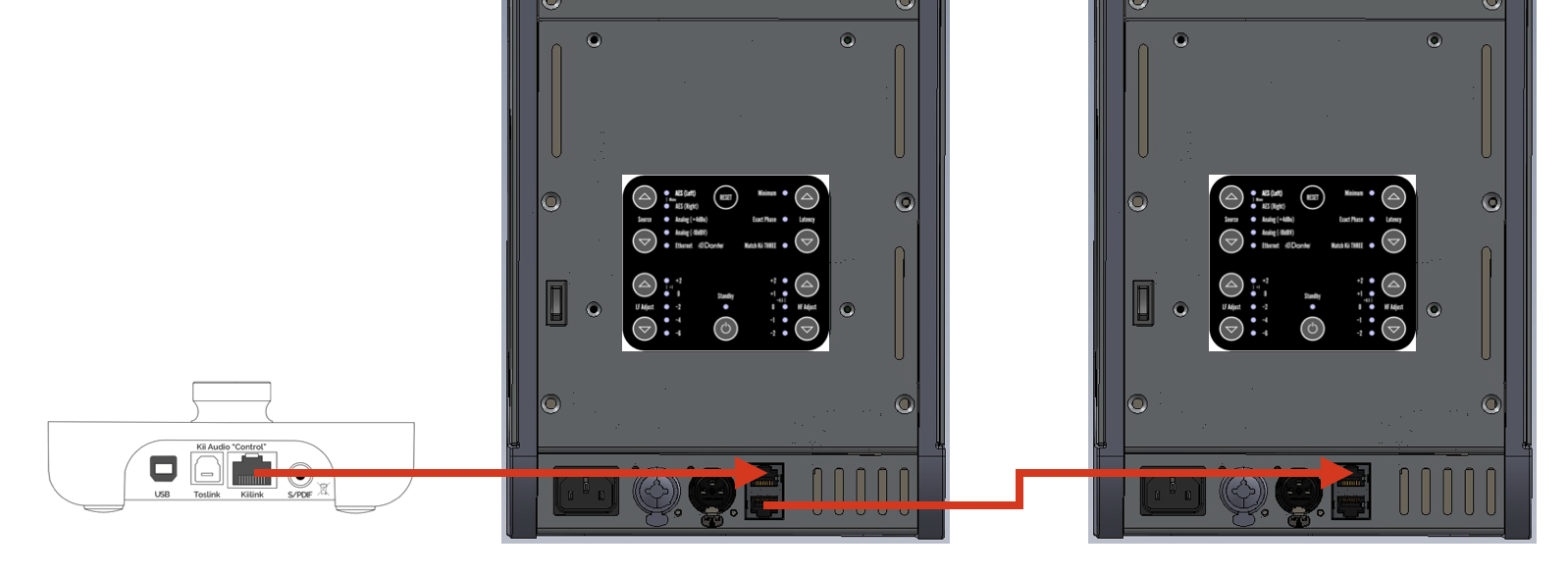
The Kii Control is connected to the first speaker via the supplied CAT6 cable,
plugged into the KiiLink IN (top connector) on the backside connector panel of your Kii SEVEN.
The first speaker is then also connected to the second speaker via the other supplied CAT6 cable,
from the KiiLink THRU (bottom connector) of the first to the KiiLink IN (top connector) of the second speaker.
The connector panel on the Kii Control offers three additional digital inputs:
1. USB (audio)
2. COAX (S/PDIF format)
3. Toslink / Optical (S/PDIF format)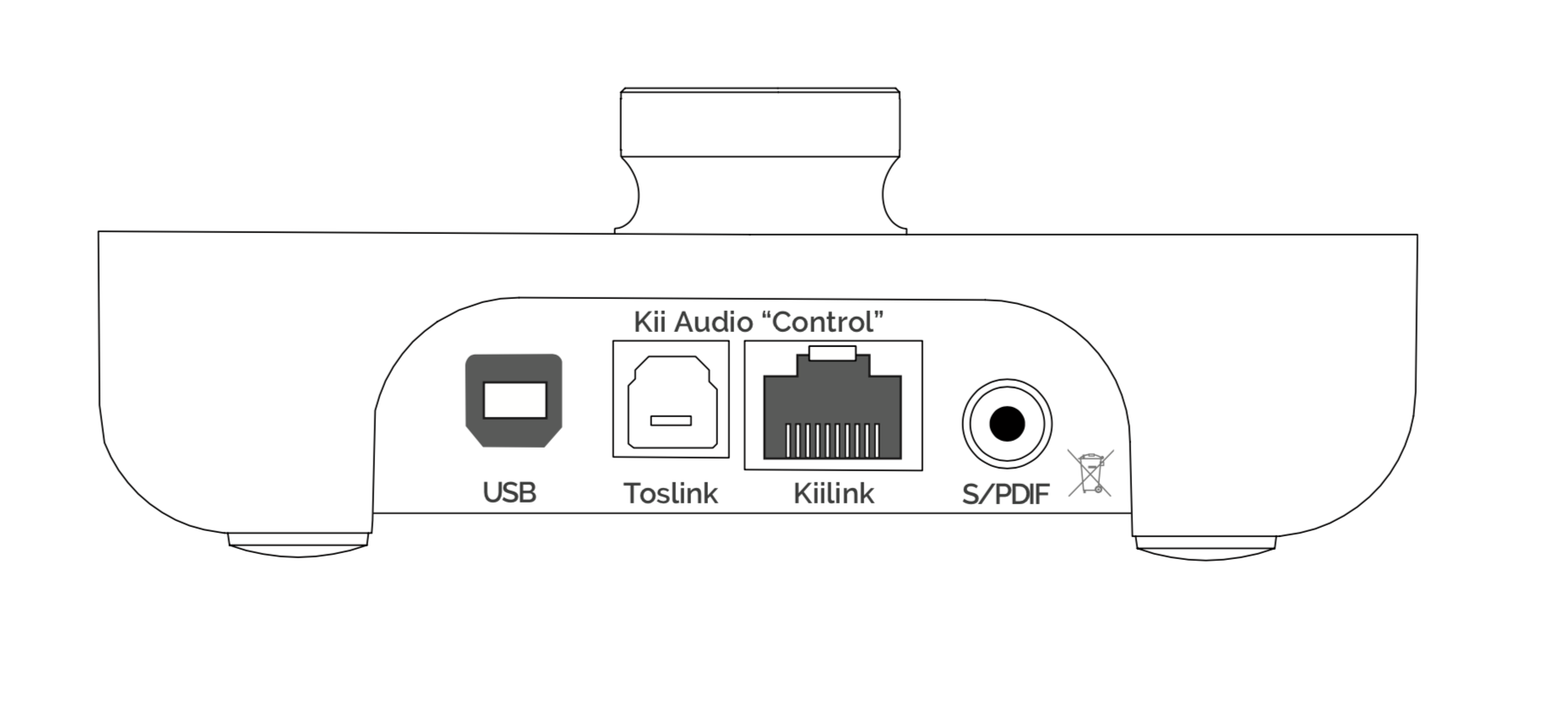
You can select any of the following three inputs via the buttons on the top panel of the Kii CONTROL:
COAX / OPTICAL / USB
Selecting the XLR button will enable the two XLR connections on the backside of the speaker:
- The left XLR input offers analog input via either XLR or 6,3mm TRS.
- The right XLR input offers digital input via AES3 (AES/EBU) format.
Which of the two XLR inputs is active can be selected in the Kii Control Menu under:
Main Menu -> Setup Menu -> XLR Input Settings -> Analog / Digital
THE PRESET BUTTON
The preset button offers direct access to up to six user specified preset settings.
By repeatedly pressing the preset button you can toggle through all preset states that have been previously saved.
You can make can make, add or delete presets and change their global behavior in the Preset menu.
The currently selected preset is indicated by the enlarged colour bar at the top of the display.
Any changes you make to parameters within the menu are automatically saved to the currently selected preset. There is no need to save or confirm your changes. When you switch back to a preset, all its settings will be exactly as you last left them.
You can always toggle through the presets (preset button), even if you are deep inside the menu structure.
That way you can easily set for example a certain parameter for all presets.
8. FIRMWARE UPDATE
If you´ve bought your speakers before JULY 2025, you will most likely need to update your speaker firmware
in order to enable streaming functionality (Spotify Connect, Tidal Connect, Qobuz Connect).
CLICK HERE: FIRMWARE UPDATE IN 4 EASY STEPS
Once the speakers have been updated, please follow the Setup instructions in the Kii Home App on your iOS or Android device to setup your Kii SEVENs in your home network. Setup a Zone for a single speaker or a stereo pair and the Zone name will show up as an output device directly in the app of your streaming service (currently Spotify or Tidal), using the Connect feature.
Please ensure that your Internet router is in close enough proximity for good WIFI coverage. Preferable in line of sight.
The Kii HOME APP keeps your Kii SEVEN firmware automatically updated to the current release.
If you encounter any issues and need to update your speakers, please open a ticket here: https://www.support.kiiaudio.com/ticket
9. STREAMING & Kii HOME APP
The latest firmware release for the Kii SEVEN offers built-in network streaming functionality for SPOTIFY CONNECT, TIDAL CONNECT and QOBUZ CONNECT, either via Ethernet cable or via your home WIFI network.
In order to setup and control your Kii SEVEN System for wireless streaming:
Download the Kii Home App
from your local Apple App Store or Google Playstore onto your iPhone, iPad or Android device:
How to Connect Your Kii SEVEN to Your Home Network
- Watch the Video -
If you encounter any questions or issues with your WIFI network connections,
please also check chapter 12: "NETWORK REQUIREMENTS
The current firmware release offers integration of the below streaming services:
(More streaming services will be added in future firmware releases)



Spotify Connect - A better way to listen at home.
- Instant switching. From your headphones to any room in the house.
- Play together. Control the music from any mobile, tablet or computer using the Spotify app.
- Nonstop tunes. Make calls, watch videos, go out of range. The music keeps flowing.
- Bring the party. Readymade playlists for every mood and moment.
- Connect to better sound. Higher sample rates make the most of your music.
Use your phone, tablet or computer as a remote control for Spotify.
Go to spotify.com/connect to learn how.
The Spotify Software is subject to third party licenses found here: https://www.spotify.com/connect/third-party-licenses.

How to use Tidal?
Tidal also offers the full convenience with its integrated Tidal Connect features.
It offers you all playback functions as well as volume control. All easily controlled from within the Tidal App.
Choose a song, album, or playlist from your Tidal library. Begin playback by pressing the play button.
Connect to your Kii SEVEN:
Tap the Tidal Connect icon (usually found at the bottom of the Now Playing screen). A list of available Tidal Connect-enabled devices on your network will appear. Select the Kii SEVEN as your playback device. Enjoy High-Quality Streaming
Once connected, music will stream directly to your selected device.
You can control playback (pause, skip, adjust volume) directly from the Tidal app. Closing the Tidal app or switching devices will not interrupt playback, as the stream continues from the cloud.
Find out more here: https://tidal.com/Connect

Qobuz Connect gives you access to the complete Qobuz experience, including all its features and the magazine, directly on your Hi-Fi devices.
Unmatched Sound Quality, Always.
No matter where you are or how you listen, Qobuz guarantees the highest sound quality and an unmatched listening experience. With Qobuz Connect, we stay true to our word.
Find out more here: https://www.qobuz.com/
10. DANTE OPERATION
The Kii SEVEN also offers compatibility with AUDINATE`s DANTE protocol.
When used as a DANTE playback device each Kii SEVEN speaker can be addressed as a single channel playback device (output) within a DANTE network.
The Kii Control must be disconnected for DANTE operation!
Therefore each speaker is only connected to the mains and to the DANTE network with a single ETHERNET cable plugged into one of the two network pots on the Kii SEVEN.
These are the two ports facing upwards to the right of the connector panel.
The speakers can be addressed from your computer via the DANTE virtual soundcard (DVS).
DVS licenses are available from the Audinate website:
https://www.getdante.com/products/software-essentials/dante-virtual-soundcard/
11. NETWORK REQUIREMENTS
Our speakers can connect to your local network for setup, control, and communication between devices.
They support both Wi-Fi and wired Ethernet connections. To ensure reliable operation, please review the following network requirements and recommendations before installation.
General Network Requirements
These requirements apply to both Wi-Fi and wired Ethernet connections.
All speakers must be connected to the same local network on the same subnet.
Guest networks, separate VLANs, or isolated networks are not supported.
Multicast Support (Required for Discovery)
The speakers use multicast networking to:
- Appear in the Kii Home app
- Discover other speakers on the network
- Enable grouping and system setup
Multicast traffic does not affect audio quality, synchronization, or dropouts.
If multicast is blocked, speakers will not discover each other or appear in the app.
Your network equipment must:
- Allow multicast traffic on the local network
- Allow devices to communicate freely with each other
- Have features such as AP isolation, client isolation, or wireless isolation disabled
Speaker-to-Speaker Communication
When multiple speakers are used together, they communicate over the local network to coordinate timing and operation.
For best results:
- Keep all speakers on the same network segment
- Avoid networks that frequently move devices between access points
- Avoid guest networks or separate subnets
Wi-Fi Network Requirements and Settings
Preferred Wi-Fi Band: When using Wi-Fi, 5 GHz is recommended over 2.4 GHz.
Benefits of 5 GHz:
- Less interference from other networks and household devices
- More stable connections
- Better performance with multiple speakers
Automatic Band and Access Point Selection
If your Wi-Fi network uses a single network name (SSID) for both 2.4 GHz and 5 GHz bands, no manual selection is required.
Each speaker:
- Scans available Wi-Fi access points
- Shares scan results with the other speakers
- Automatically agrees on the optimal access point (BSSID) to use
This process ensures the system connects to the most suitable band and access point available, typically 5 GHz when conditions allow.
Separate Network Names (SSIDs)
If your router uses separate network names for different bands:
- Connect the speakers to the 5 GHz network
- Do not mix bands or SSIDs across speakers
Connecting speakers to different SSIDs can prevent discovery and grouping.
Channel Width Limitation
The speakers require a maximum 5 GHz channel width of 40 MHz.
Some routers default to wider channels (80 MHz or 160 MHz), which can cause connection issues.
Recommended settings:
- 5 GHz channel width: 20 MHz or 40 MHz
- Avoid automatic channel width settings that select wider channels
DFS Channels (Recommended to Avoid)
Some 5 GHz Wi-Fi channels are shared with weather and aviation radar systems.
These are known as DFS (Dynamic Frequency Selection) channels.
When a router uses DFS channels:
- It must automatically change channels if radar is detected
- This channel change can temporarily interrupt Wi-Fi connections
As a result, DFS channels are more likely to cause audio dropouts or brief disconnections,
especially in areas near airports or weather radar.
Recommendation:
- Use non-DFS 5 GHz channels when possible
- Avoid “Auto” channel selection if it frequently chooses DFS channels
If DFS channels cannot be avoided, consider using wired Ethernet for the most stable performance.
Supported and Known Networking Equipment (Whitelist)
The following networking products are known to work well when configured correctly:
- Ubiquiti UniFi access points
- AVM Fritz!Box routers
Known Problematic Devices (Blacklist)
Some routers are known to cause issues with device discovery due to multicast handling or have issues with data thoughput:
- Spectrum SAX2V1S
On this router, speakers may connect to the network but fail to discover each other or appear in the app.
- tp-link AX1800
The throughput on this router is not stable.
- Xiaomi AX9000
The 5Ghz band on this device is not compatible with default settings.
- Amplifi HD
On this router, speakers may connect to the network but fail to discover each other or appear in the app. Also the throughput on this router is not stable.
If you are using any of these devices, we recommend:
- Adding your own Wi-Fi access point, or
- Replacing the router with one that properly supports multicast traffic
Additional Recommendations
- Do not use guest Wi-Fi networks for speakers
- Avoid Wi-Fi extenders that create separate networks
- Keep router firmware up to date
- Ensure speakers are placed within good network coverage
Wired Ethernet Connection
Each speaker includes two Ethernet ports, functioning as a built-in network switch.
This allows speakers to be:
- Connected directly to your router, and/or
- Daisy-chained from one speaker to the next
When to Use Ethernet
A wired connection is recommended when:
- Wi-Fi coverage is limited or unstable
- Speakers are far from the router
- Playing high-resolution audio, where wireless interference may cause dropouts
Ethernet provides the most reliable performance and avoids wireless interference entirely.
Summary
For the best experience:
- Use wired Ethernet when possible, especially for high-resolution audio
If using Wi-Fi:
- Prefer 5 GHz
- Limit channel width to 40 MHz
- Use a single SSID when available
- Ensure multicast traffic is enabled
- Keep all speakers on the same local network
Following these guidelines will ensure reliable setup, smooth operation, and stable multi-speaker performance.